
Product
Okta Identity Engine
Objective
To configure LastPass Authenticator as IdP MFA.
Details
Create a custom SSO App in LastPass
- Login into LastPass Admin console: https://admin.lastpass.com
- Go to Applications > SSO Apps
- Add App

- In order to create a custom SSO App, we need to generate Keys which will take 15 mts to get activated after which the SSO Apps are available.
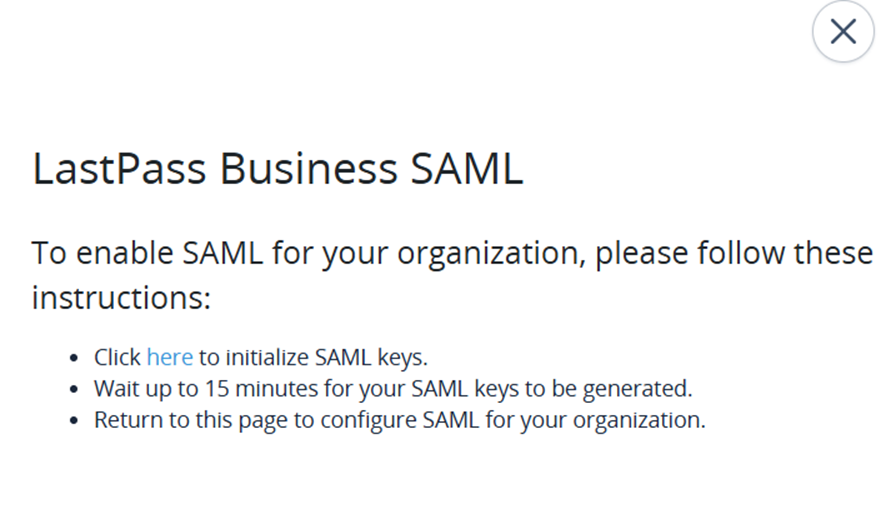
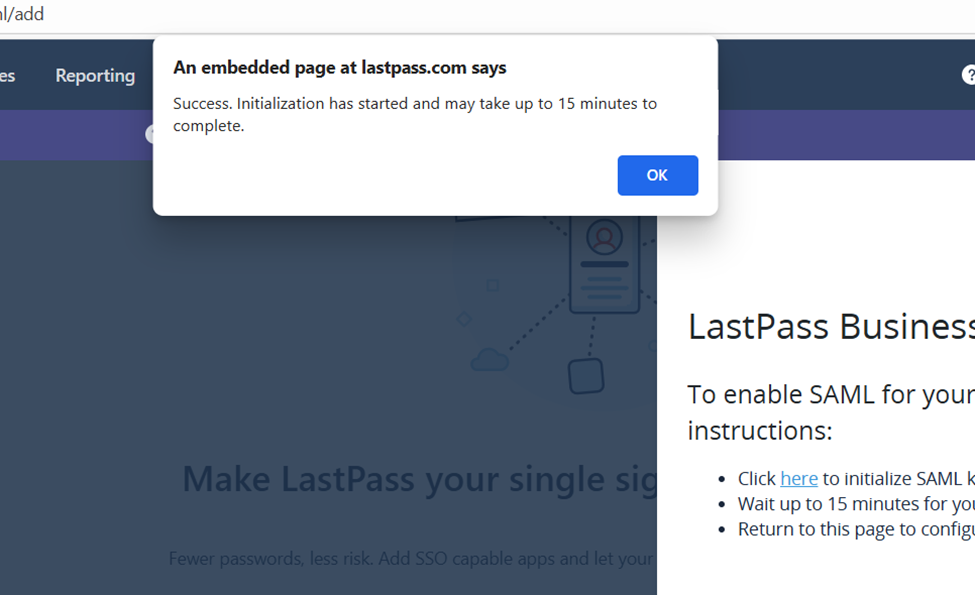
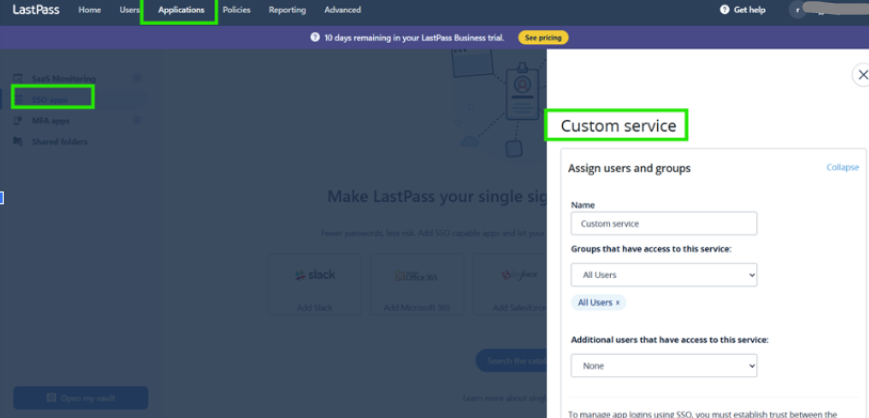
- Create custom service for Okta
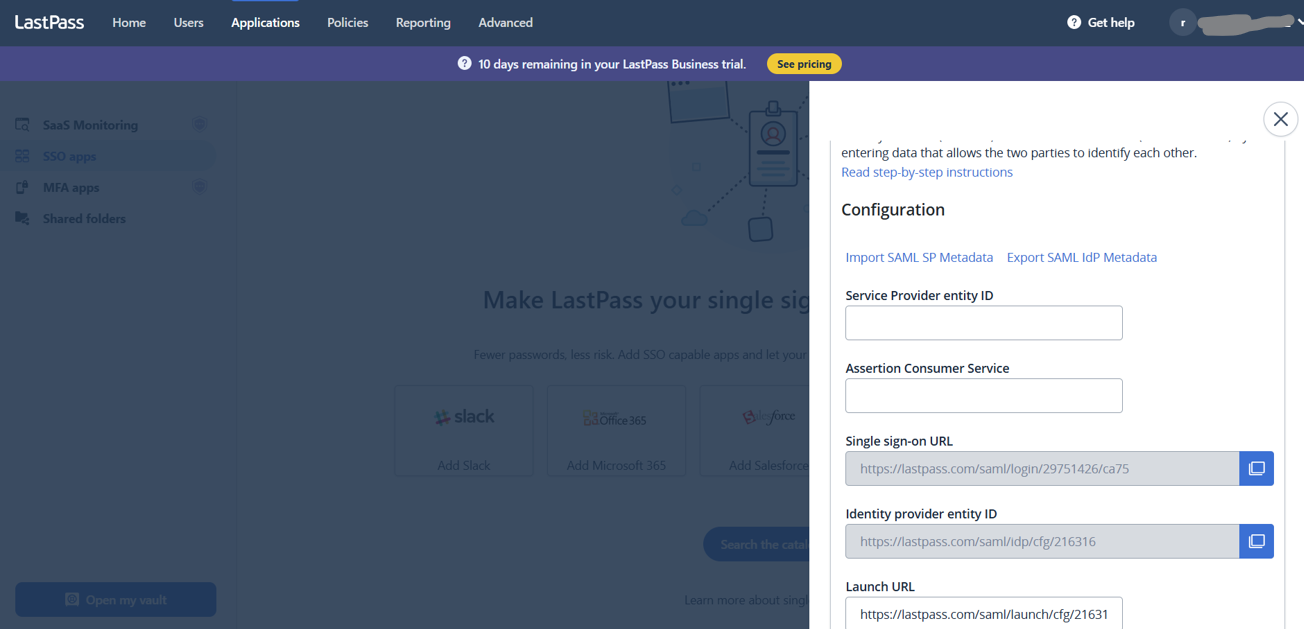
- Scroll down to find the Single sign-on URL and Identity provider entity ID. This needs to be provided to Okta.
- Scroll down to the certificate for Service Provider
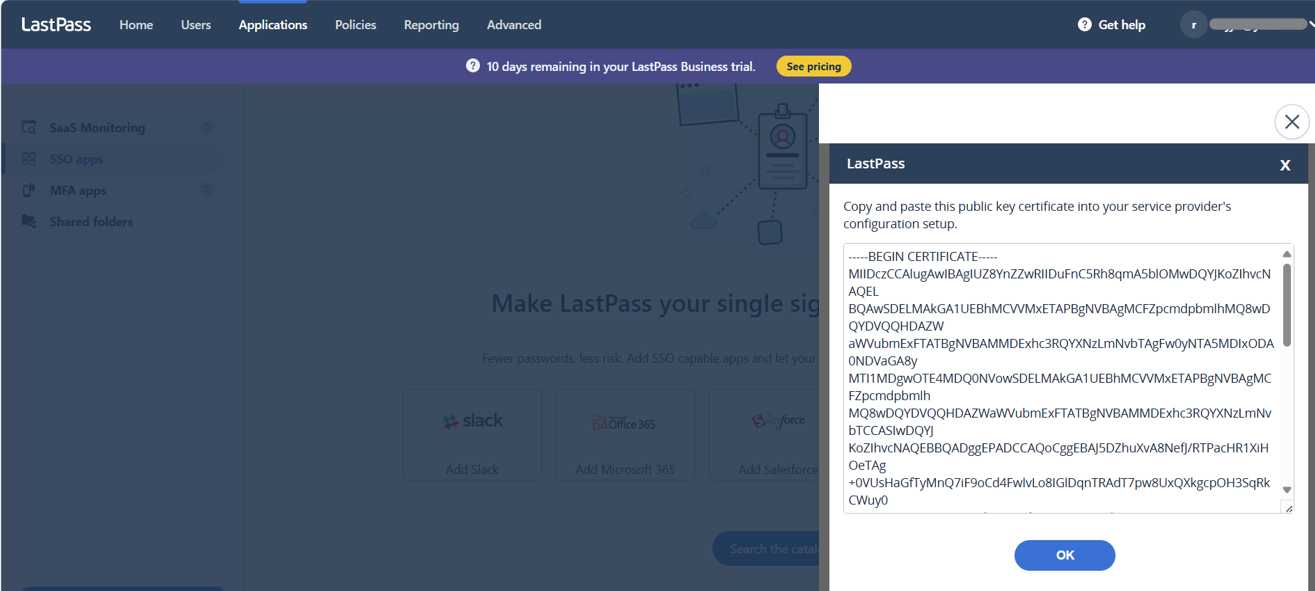
- Copy certificate into a text file and rename to .cer (Ex: LastPass.cer)
- Upload this certificate into OKTA
Configure LastPass as a SAML2.0 IdP in Okta
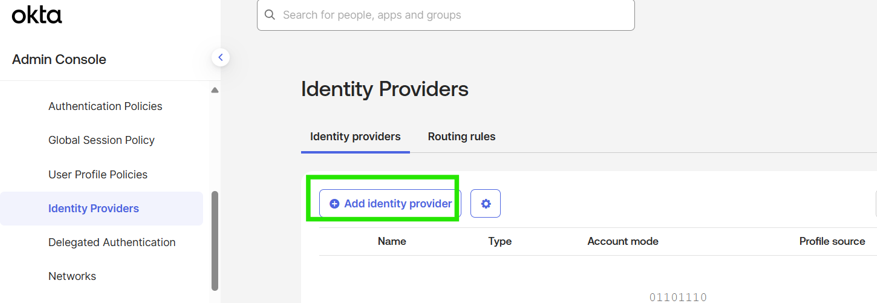
- Login to Okta and go to Security > Identity Providers
- Add a new Identity Provider
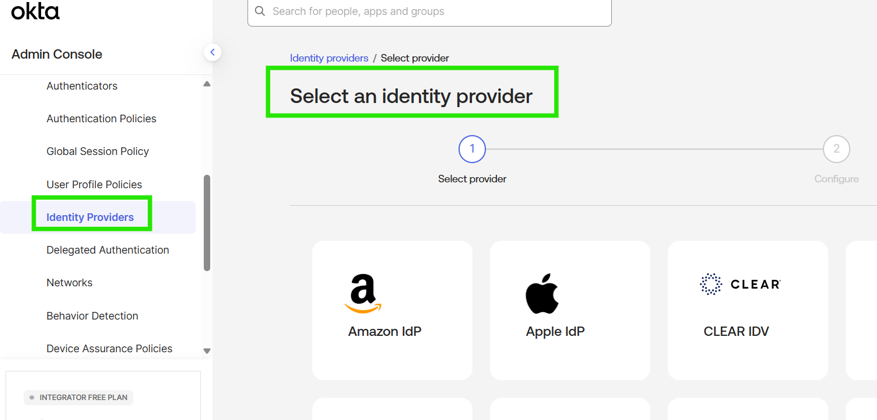
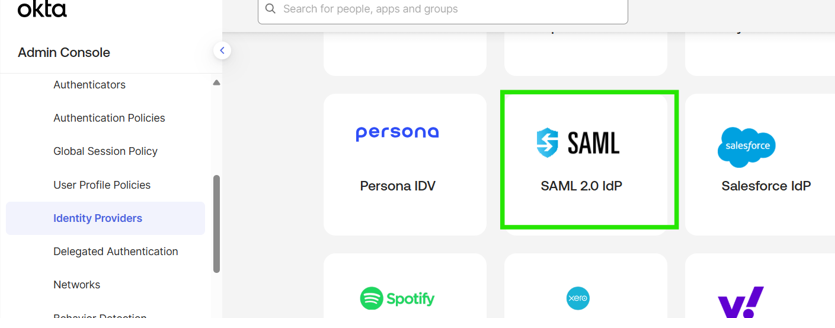
- Select a SAML 2.0 IdP and click Next
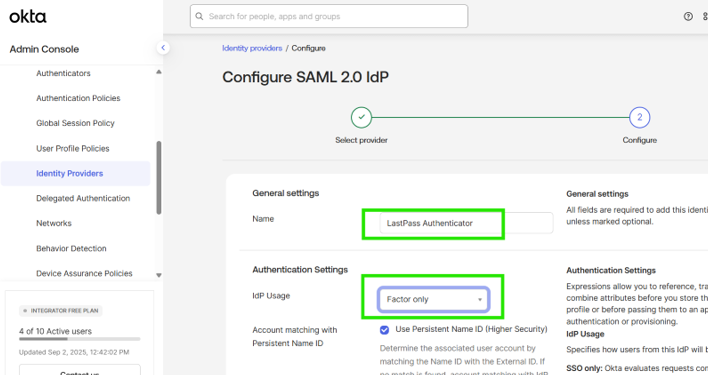
- Provide a name and select Factor Only in IdP Usage
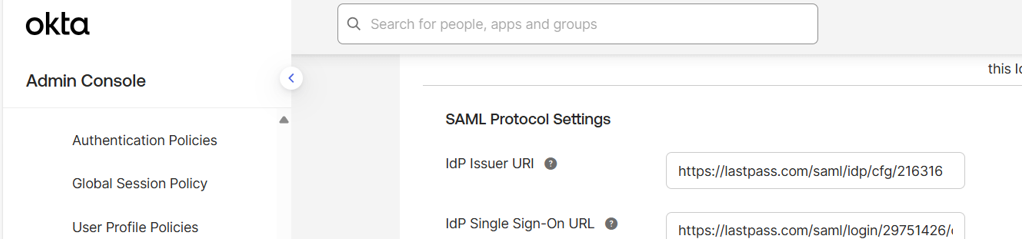
- Enter IdP Issuer URL (Identity provider entity ID) and Single Sign On URL from LastPass
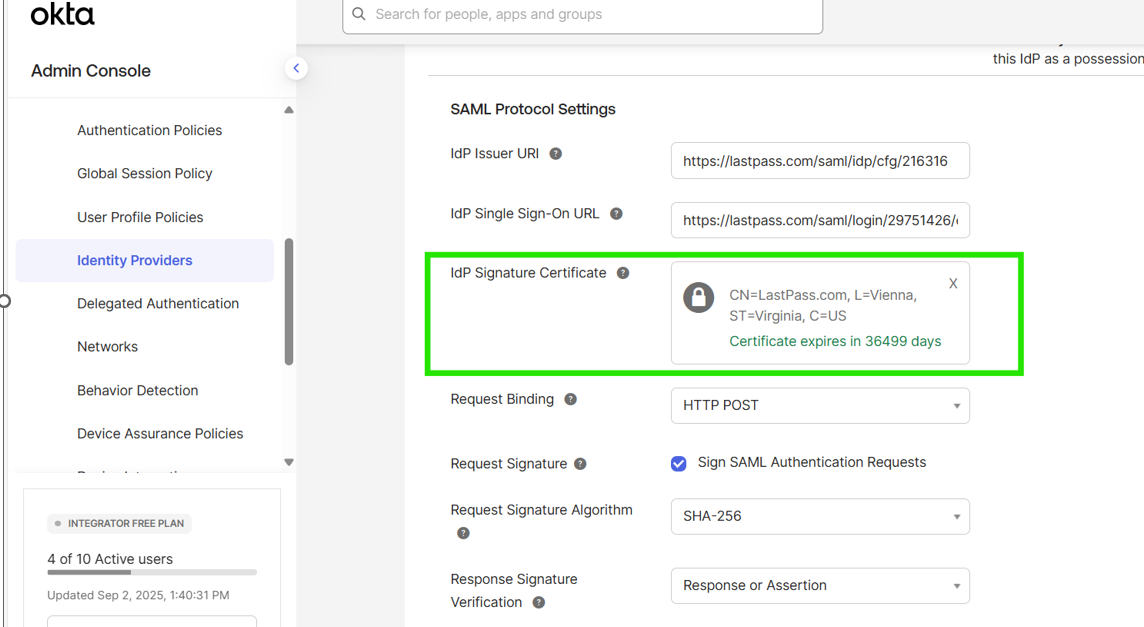
- Upload the certificate that was copied from LastPass SSO App configuration
- Save the IdP
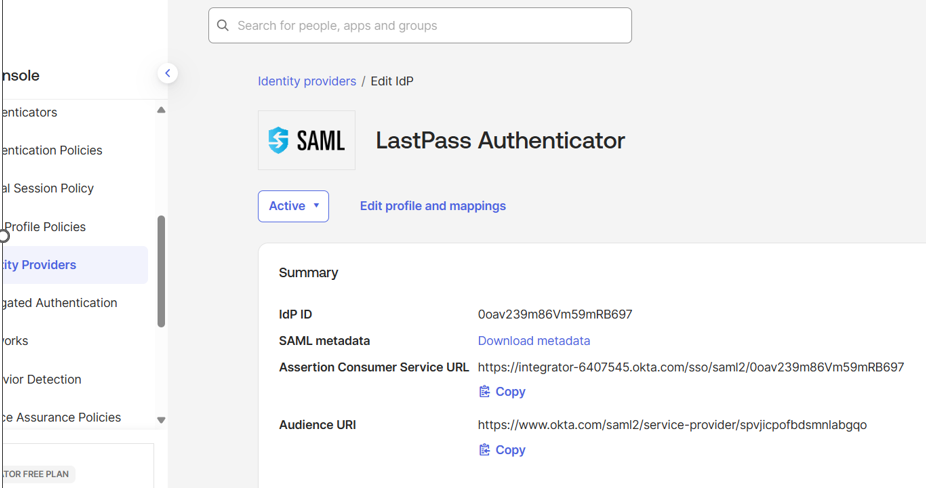
- Copy the Assertion Consumer Service URL (ACS) URL, Audience URI and download metadata
Update Okta SSO App Configuration in LastPass
- In LastPass Admin Console, Edit Custom Service that was created under SSO Apps
- Update the Service Provider entity ID with IdP ID and Assertion Consumer Service with ACS URL from OKTA Identity provider screen
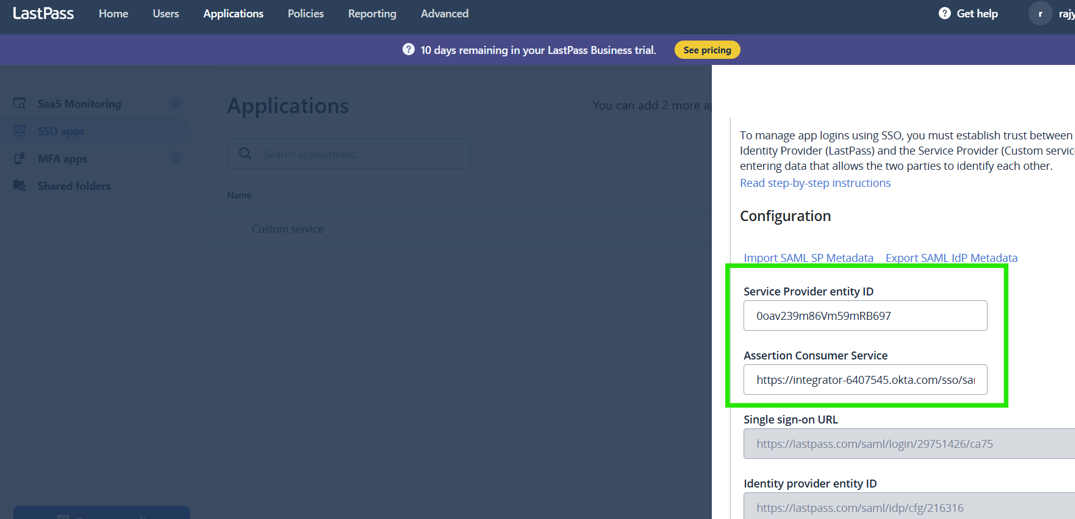
- Import SAML SP Metadata
Copy and paste the metadata from OKTA
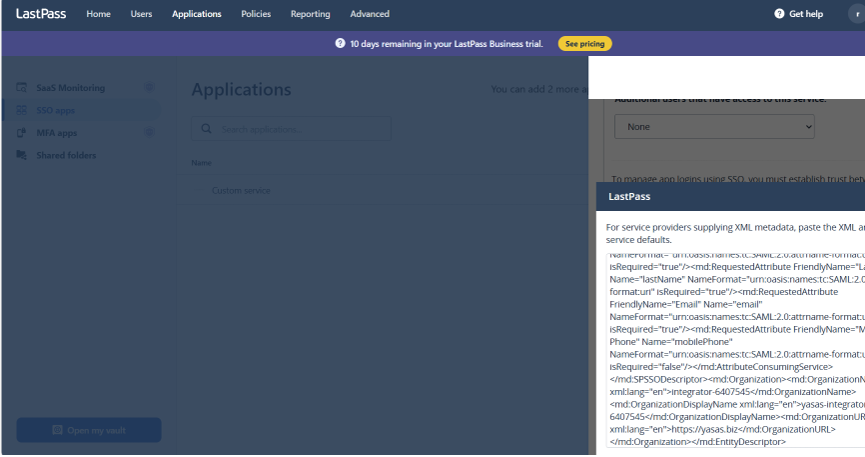
- Export SAML IdP Metadata
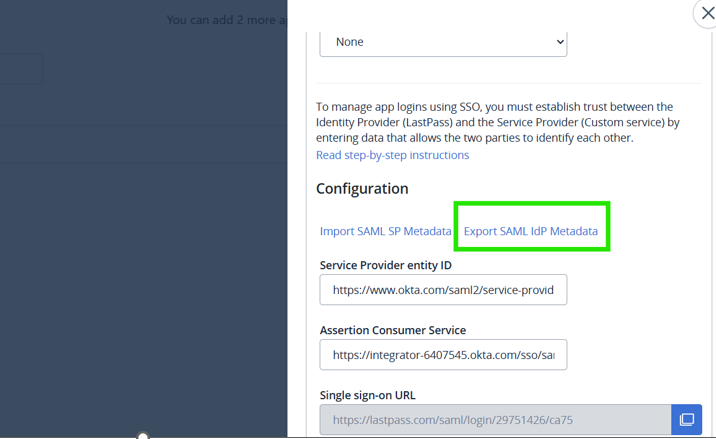
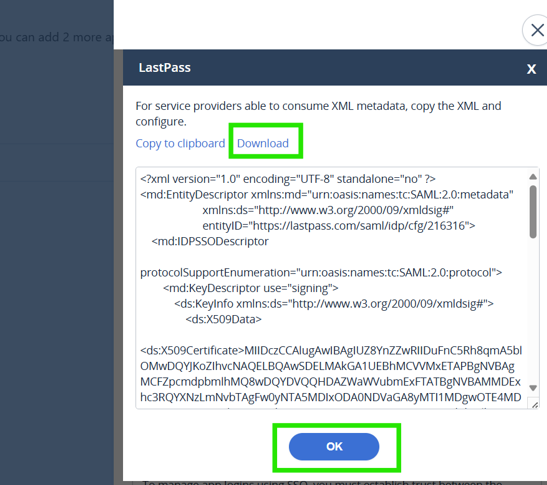
- Download the metadata
- Save the configuration in LastPass
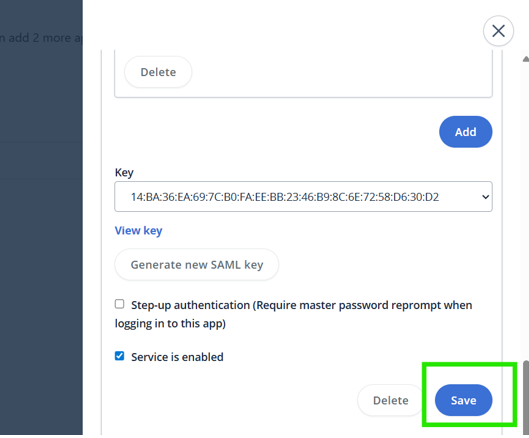
Add Okta SAML 2.0 IdP Authenticator
- Login to Okta and go to Security > Authenticators
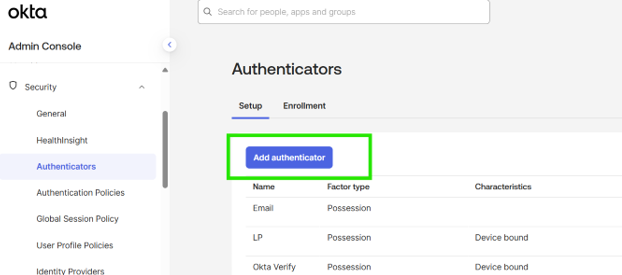
- Add authenticator
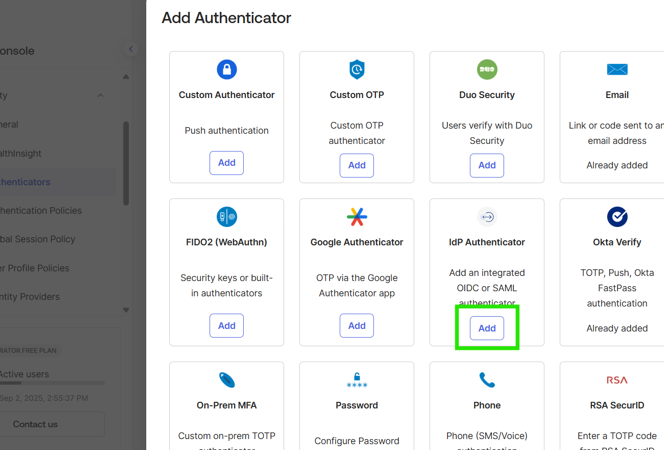
- Provide name for the authenticator
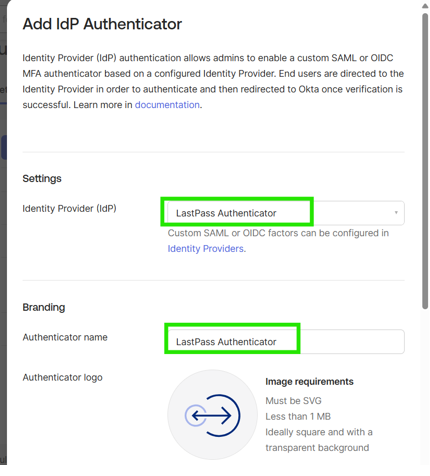
Select LastPass Authenticator that we created in earlier step
Name: LastPass Authenticator
Use Default Logo
- LastPass Authenticator was added
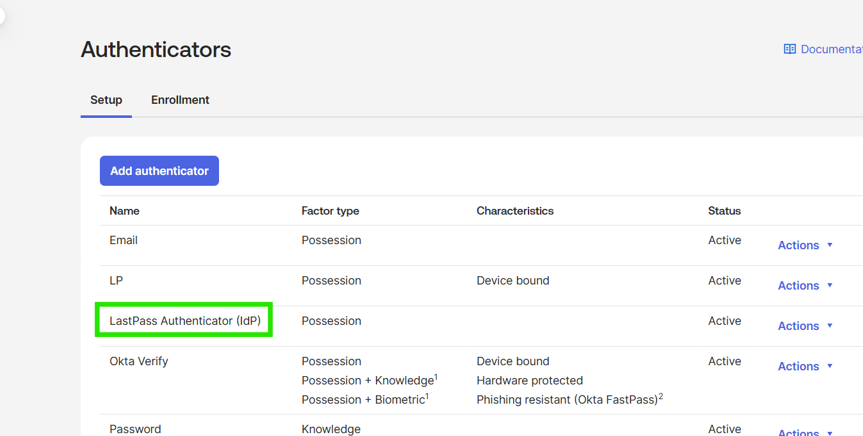
User Experience
- Create an enrollment policy to allow users to enroll into LastPass Authenticator
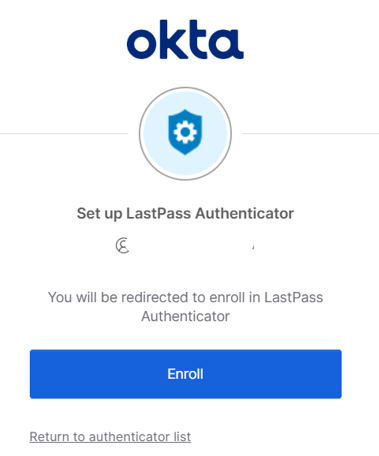
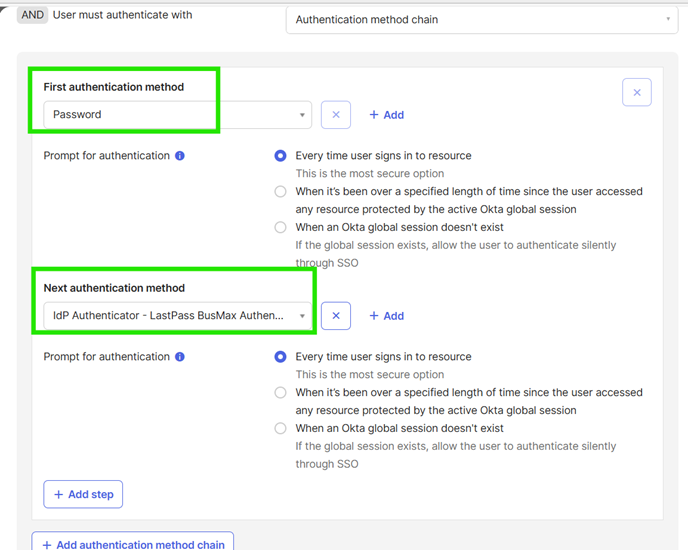
- An authentication policy must be created to prompt the user for MFA as LastPass Authenticator. For Ex:
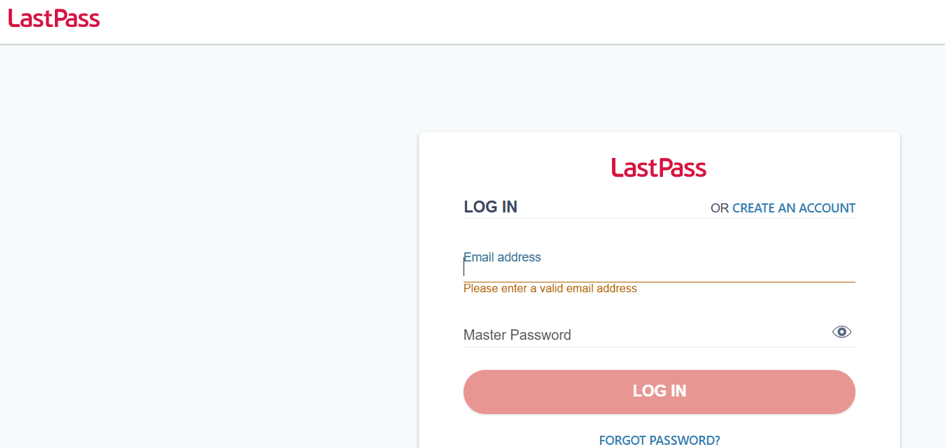
- User logs into LastPass with LastPass account
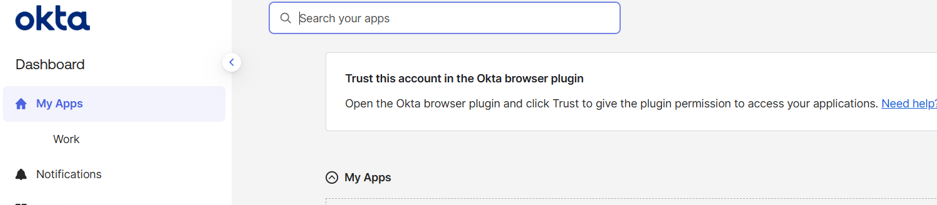
After successfully logged in, user is logged into Okta

Configure LastPass Password Less Login
When user is redirected to LastPass, user is not prompted for password but allows login using user name and LastPass authenticator
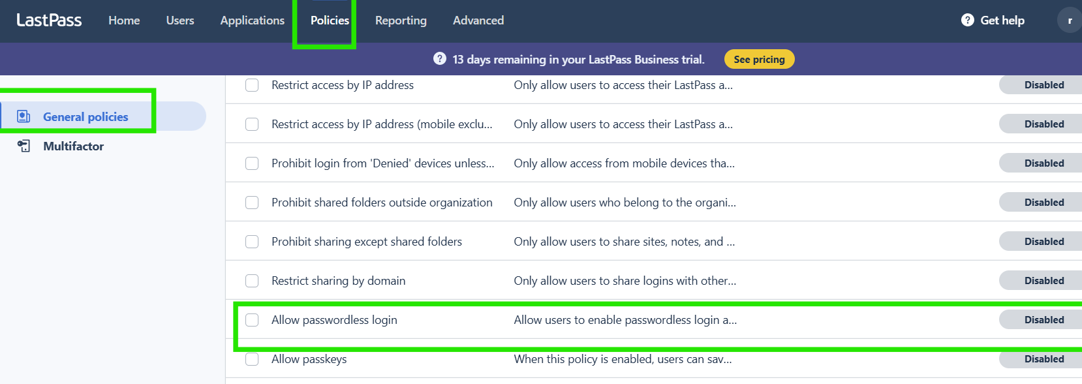
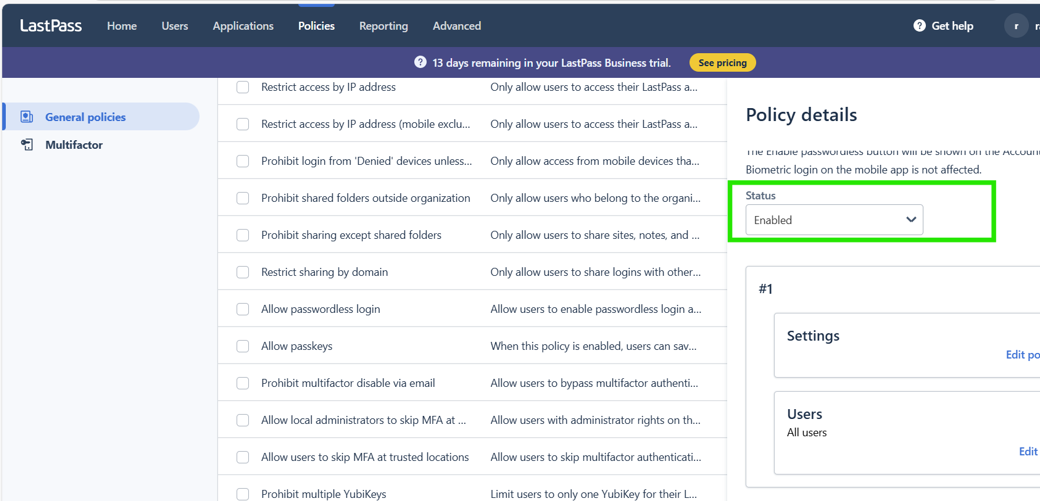
Enable Allow passwordless login policy
- As a LastPass Administrator, login to Admin Console, go to Policies>General Policies
- Search for Allow passwordless login
Disable any MFA policies
If any MFA policies are configured, then disable all MFA policies in LastPass
Enable Passwordless login (User setting)
- Login to LastPass as a regular user, Go to Account Settings and Enable Passwordless login in Passwordless login options
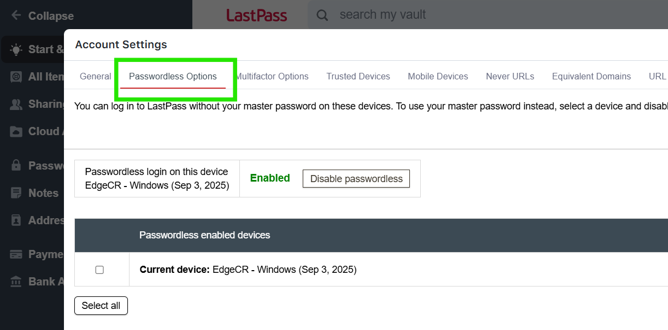
- Passwordless login is enabled for each browser where LastPass is accessed (we will need different policies for different browsers)
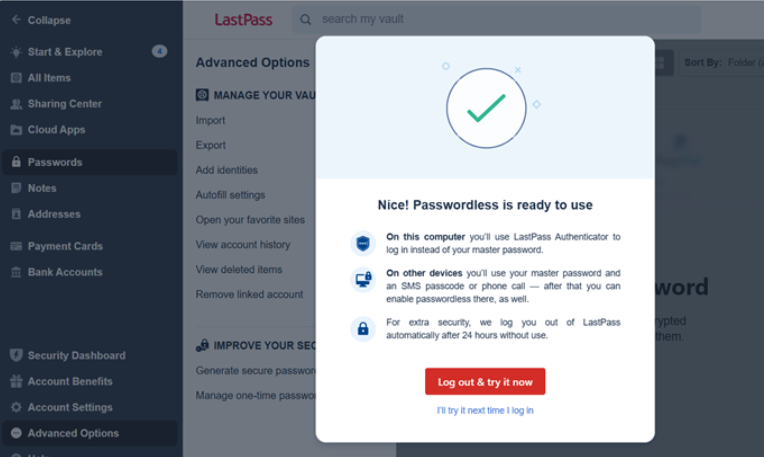
- Logout
User Experience
Provide OKTA username and password (If Desktop SSO is configured, then when user accesses OKTA will be asked to verify with LastPass that will need user to enter the LastPass Username and accept the LastPass Authenticator login request on his/her mobile)
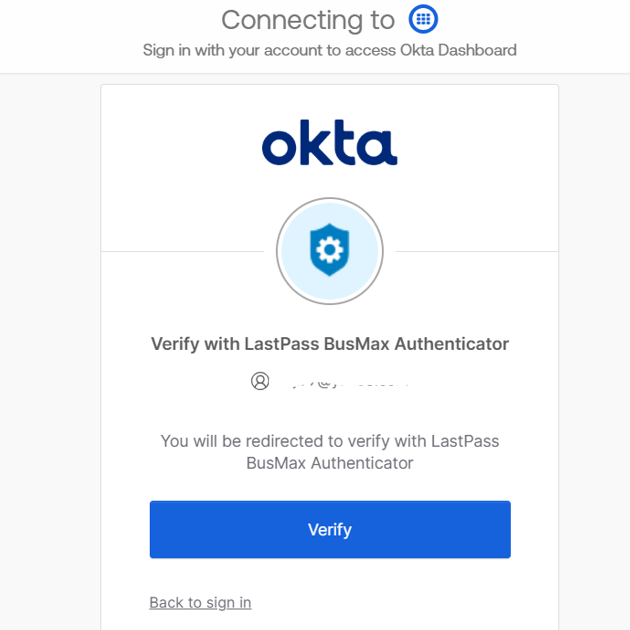
Verify with LastPass Authenticator

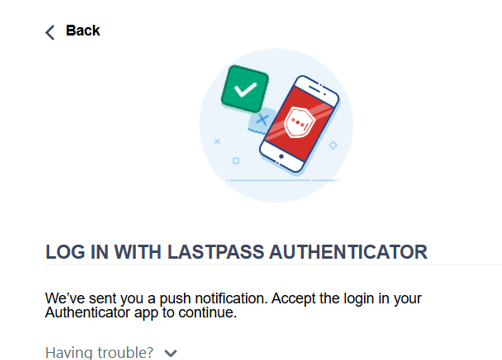
A push notification is sent on user’s device
User is logged into Okta after successful login to LastPass (user is not prompted for password)
High Level Steps to achieve LastPass as MFA
| OKTA configuration | LastPass Admin configuration | LastPass User configuration |
|---|---|---|
Add a SAML 2.0 IdP (Security > Identity Providers) for LastPass · Configure the SAML 2.0 Identity Provider in OKTA as Factor Only
| Add a new SSO Application in LastPass for OKTA · IdP issuer URL (LastPass IdP ID), SSO URL and a Certificate (Public Key) are created as part of this process | |
Update Identity Provider with information from LastPass. · Once we save the IdP, OKTA presents with Identity Provider ID, Metadata, and Assertion Consumer Service (ACS) URL | ||
Update the IdP ID as Service provider ID, update the ACS link and import the metadata into LastPass SSO App. Save the application
| ||
| Disable all MFA factors except LastPass Authenticator | ||
| Enable the General policy Allow passwordless login (optionally restrict to specific users) | ||
| If there are any MFA policies, they have to be disabled | ||
| Enable Passwordless options in Account Settings | ||
| If there are any MFA policies, they have to be disabled | ||
| Add the Identity Provider as an Authenticator (Security >Authenticators) | ||
Add a Factor Enrollment Policy for the users to allow users to setup LastPass Authenticator as their preferred MFA (this can be made a Required MFA factor along with Password)
| ||
| Add an Authentication policy for OKTA Dashboard to use a custom authentication chain having Password and LastPass IdP Authenticator. Additional restrictions on user group membership, devices allowed, user IPs allowed, MFA challenge period can be configured |
Result: User when accesses OKTA, is prompted for username and password followed by LastPass Verification. User needs to provide the LastPass Username and then accept the LastPass Authenticator’s login request on his/her mobile.
Reference(s)
Okta documentation to configure IdP Authenticator
Configure the IdP authenticator | Okta Identity Engine
Add a SAML 2.0 IdP | Okta Identity Engine
LastPass instructions to enable password less login
About passwordless login for LastPass
Author
Rajya Tupuri