
Product
Okta Privileged Access Gateway
Issue details
Users were unable to SSH/RDP to the servers via Gateway. Connection to Gateway on Port 7234 was refused.
Possible Cause(s)
Okta Privileged Access Gateway Service (sft-gatewayd) is not running or inbound port 7234 was not open on the Gateway server
Troubleshooting
Gateway service was down with the below errors in the log.
To check the sft-gatewayd process log messages on the Gateway server, run command: journalctl -u sft-gatewayd
Jan 21 16:23:46 <ServerName>sft-gatewayd[2272]: 2026-01-21T16:23:46.819-0500 INFO Opening listener {“port”: “0.0.0.0:7234”}
Jan 21 16:23:46 <ServerName> sft-gatewayd[2272]: 2026-01-21T16:23:46.819-0500 ERROR Session log temporary storage directory and session log final storage location are on different devices. Set the SessionLogTempStorageDirectory config option to a location on the target storage device is needed. {“SessionLogTempStorageDirectory”: “/var/log/sft/tmp”, “LogDir”: “/var/log/sft/sessions”}
Jan 21 16:23:46 <ServerName> sft-gatewayd[2272]: 2026-01-21T16:23:46.820-0500 ERROR error with SessionLogTempStorageDirectory configuration option {“error”: “file devices do not match”}
Jan 21 16:23:47 <ServerName> sft-gatewayd[2272]: 2026-01-21T16:23:47.820-0500 ERROR sft-gatewayd service failed, automatically retrying {“version”: “1.99.5”, “retry_in”: “17m12.446776938s”}
Solution/Fix
The session temp log location (/var/log/sft/tmp) and final storage location (/var/log/sft/sessions) are not on the same file system.
- Create the tmp storage directory directly under final storage location on the Gateway server: /var/log/sft/sessions/tmp
- Update the Gateway config file with the changed tmp Session log storage location
Run Command: vi / et/sft/sft-gatewayd.yaml

3. Scroll down to Session Capture section
- Change the value of SessionLogTempStorageDirectory from /var/log/sft/tmp to /var/log/sft/sessions/tmp
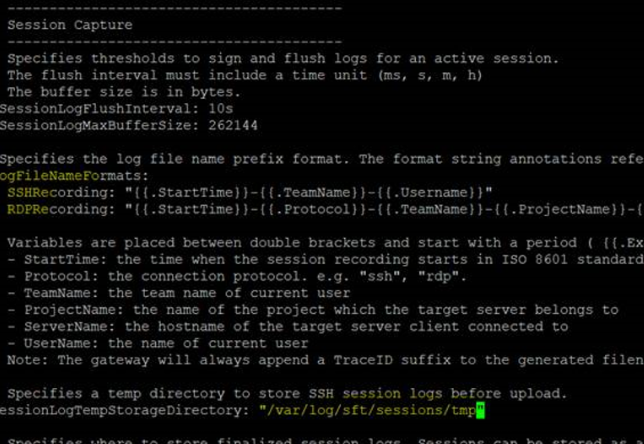
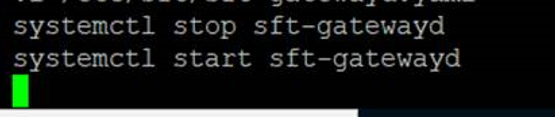
4. Save the file and restart the sft-gatewayd service using below commands
Run Command: stop sft-gatewayd
Run Command: start sft-gatewayd
5. To check the sft-gatewayd process log messages on the Gateway server, run command: journalctl -u sft-gatewayd
6. Validate the sft-gatewayd process is listening on port 7234
7. Validate the session recording log errors are resolved
8.Validate the process is running without any other errors
9.Users will now be able to RDP/SSH to the servers via Gateway
10. RDP/SSH sessions are recorded and the session recording log files are created in the locations specified in the sft-gatewayd.yaml file
Workaround
NA
Reference
Reference Documentation: Session recording | Okta Identity Engine
Author
Ketaki Mujumdar