
Product
OKTA Privileged Access
Objective
Configure Client Enrollment Policy to enroll OPA client using Token
Details
Configure Enrollment Policy
Okta Privileged Client can be installed using a token on the servers. Silent enrollment allows you to automate the enrollment process and add multiple clients to Okta Privileged Access at the same time. This process saves time when deploying a Okta Privileged Access client across an organization.
- Login to Okta Privileged Access
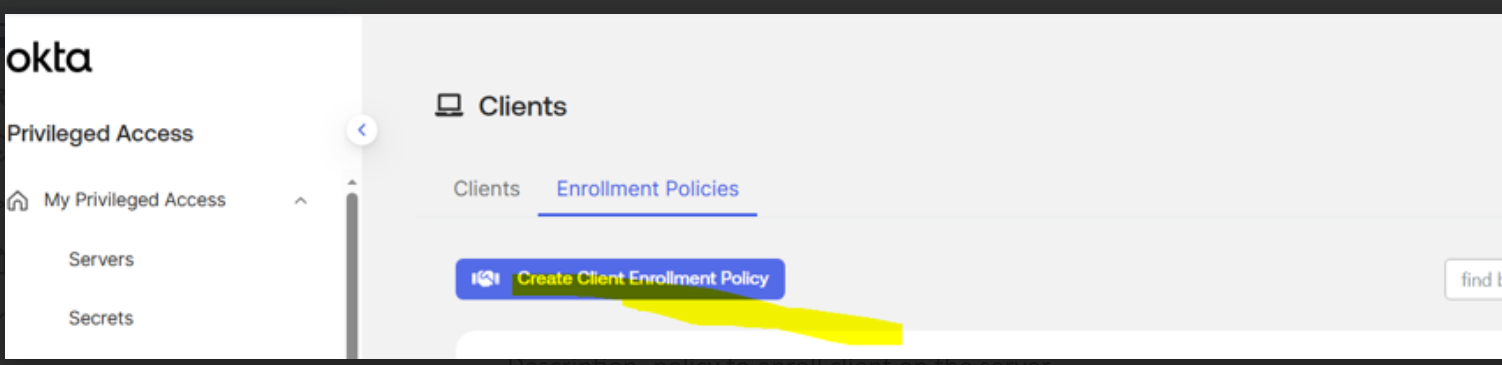
- Navigate to My Privileged Access ->Directory->Clients->Enrollment Policy
- Create Client Enrollment Policy
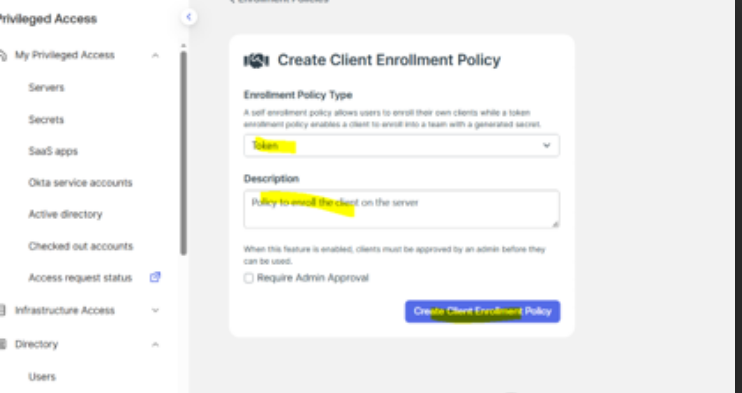
- Keep the Policy Type as Token
- Provide Description
- Click Create Client Enrollment Policy
- Create Token
- Copy the token into a file
***This is the only time that the token secret is visible. If you fail to store the secret in a safe location, it’s lost forever***
Enroll OPA Client on the server
- Copy the file onto the Server to /tmp/Token location
- Run this command to enroll the client on the server.
sft fleet enroll –token-file /tmp/Token/OPAClient.Token
Verify the Client Enrollment in Okta Privileged Access
- Login to Okta Privileged Access
- Navigate to My Privileged Access ->Directory->Clients
- The server is added to the list of servers enrolled with OPA
- Details of server such as Description, Status, Owner, Hostname, OS, Encrypt are displayed
Reference
Silently enroll the Okta Privileged Access client.htm | Okta Identity Engine
Author
Ketaki Mujumdar